Getting started
Install Avocet, grant its two permissions, and download the on-device models before your first meeting.
Avocet is a local meeting recorder for Mac. It records both sides of a call, transcribes and labels speakers on your Mac, and leaves you a markdown note. Nothing about the call is uploaded.
Install
Download the latest release and drag Avocet into Applications. Open it. The first launch walks you through a short setup before you can record.
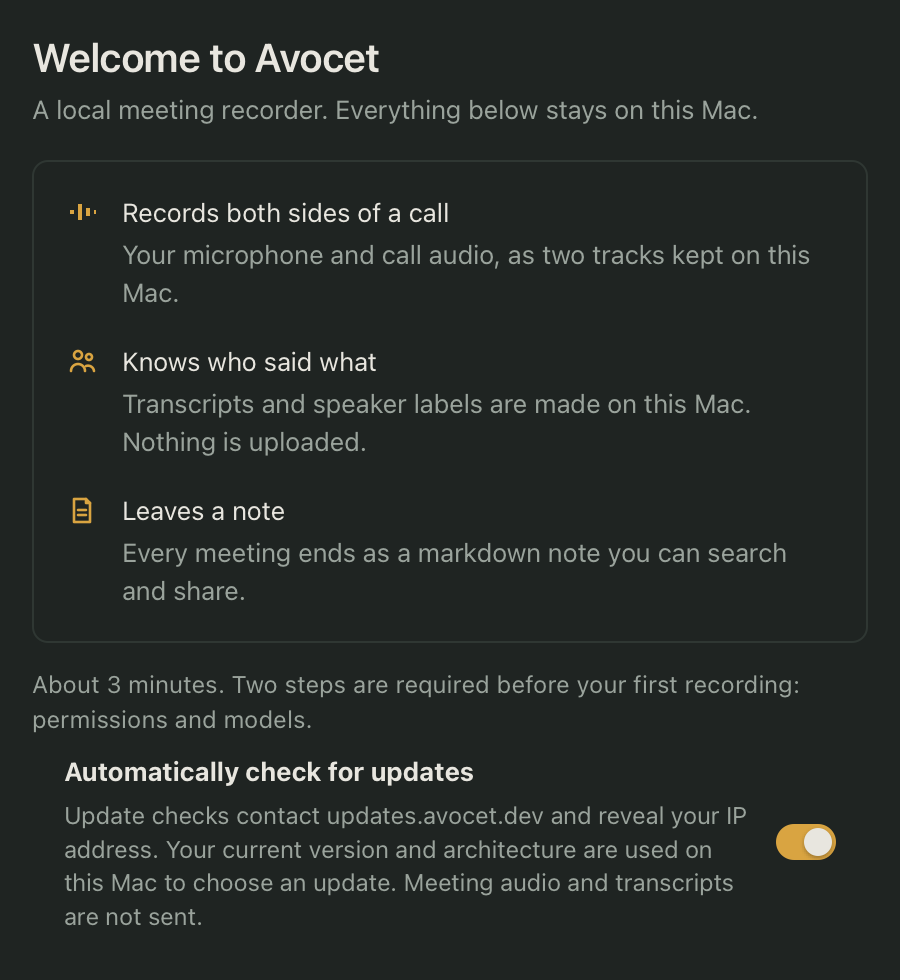
Setup takes about three minutes. Two steps are required before your first recording: permissions and models. A few more steps are optional and you can skip them.
Permissions
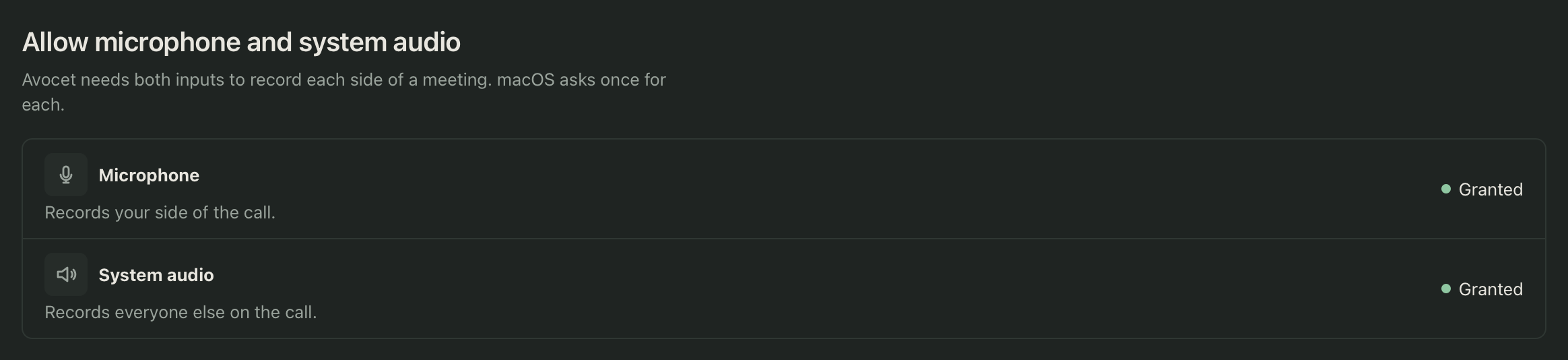
Avocet needs two macOS permissions to record a call:
- Microphone, which records your side of the call.
- System audio, which records everyone else on the call. macOS grants this under Privacy & Security > Screen & System Audio Recording.
Click Allow for each and accept the macOS prompt. If you turn one down, Avocet shows Open System Settings instead so you can turn it on later. Setup checks both permissions on its own while the window is open, so you can flip a switch in System Settings and come straight back.
Models
Avocet downloads two on-device models: one for transcription and one for telling speakers apart. Both run locally, and setup waits for them to finish before you can continue. They are downloaded during setup, and again only if you re-download or verify them in Settings.
Optional setup
A few more steps are optional and can be skipped or revisited later in Settings:
- Preferred microphone, the order Avocet tries your connected microphones in.
- Apps Avocet never records, a starting list of apps like Krisp and Siri that use your microphone for their own purposes. Avocet never records or captures audio from an app on this list.
- A short walkthrough of the menu bar icon, starting a recording, and where your notes go.
After setup
Once permissions and models are ready, Avocet opens to the Meetings list. Automatic recording is on by default, so an eligible app opening your microphone starts a meeting without a click. See Recording for how that works, and how to start one manually.
You can reopen this setup any time from Settings > Developer > Show onboarding, without losing anything you already completed.