Keyboard shortcuts
Every default shortcut in Avocet, and how to see or change them at any time.
Avocet is fully keyboard-navigable while its window has focus. Press Shift+? anywhere to see every shortcut for the page you are on.
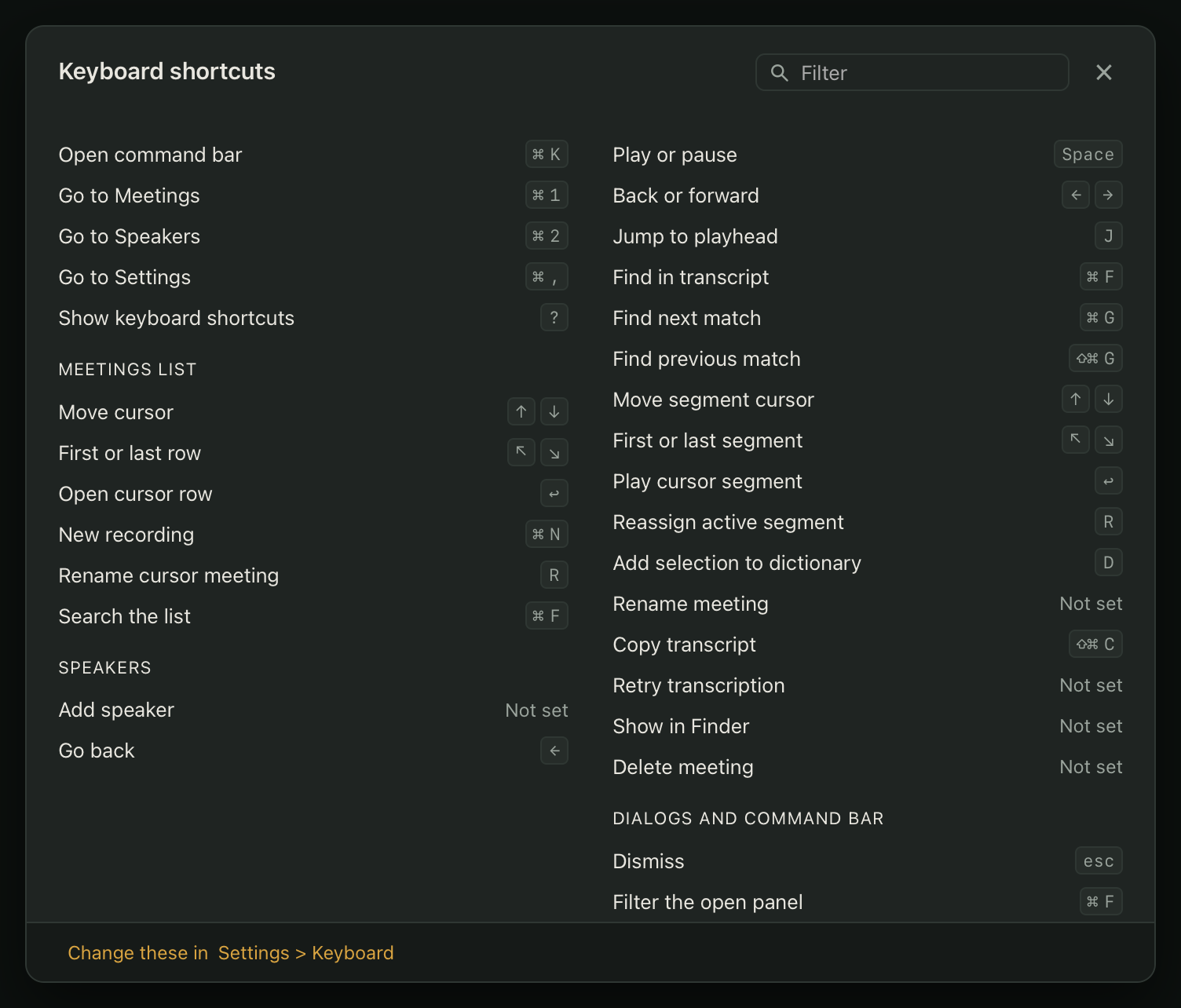
Global
| Action | Shortcut |
|---|---|
| Show keyboard shortcuts | Shift+? |
| Open command bar | Cmd+K |
| Go to Meetings | Cmd+1 |
| Go to Speakers | Cmd+2 |
| Go to Settings | Cmd+, |
| Dismiss a dialog or overlay | Esc |
Meetings list
| Action | Shortcut |
|---|---|
| Move between rows | Arrow keys, Home, End |
| Open the selected meeting | Enter |
| New recording | Cmd+N |
| Search meetings | Cmd+F |
| Rename the selected meeting | R |
Inside a meeting
| Action | Shortcut |
|---|---|
| Play or pause | Space |
| Skip back or forward | Left / Right arrow |
| Jump to the playhead | J |
| Find in transcript | Cmd+F |
| Move between transcript segments | Arrow keys, Home, End |
| Play the selected segment | Enter |
| Reassign the active segment | R |
| Add a selection to the dictionary | D |
| Copy transcript | Cmd+Shift+C |
Command bar
Press Cmd+K to open it from anywhere. It lists meeting actions when a meeting is open, followed by Meetings, Speakers, and named Settings sections. Type to filter, use the arrow keys to move, and press Enter to run the highlighted item.
Changing a shortcut
Every shortcut is customizable in Settings > App > Keyboard. Select a row's binding and press the new key combination to record it. If two actions end up sharing a chord, both rows show a conflict until you change one of them. Reset a single row, or use Reset all to defaults to start over.