Settings
Every settings section, in plain terms, and what each one controls.
Open Settings from the menu bar or press Cmd+,. Changes apply immediately, no save button and no restart.
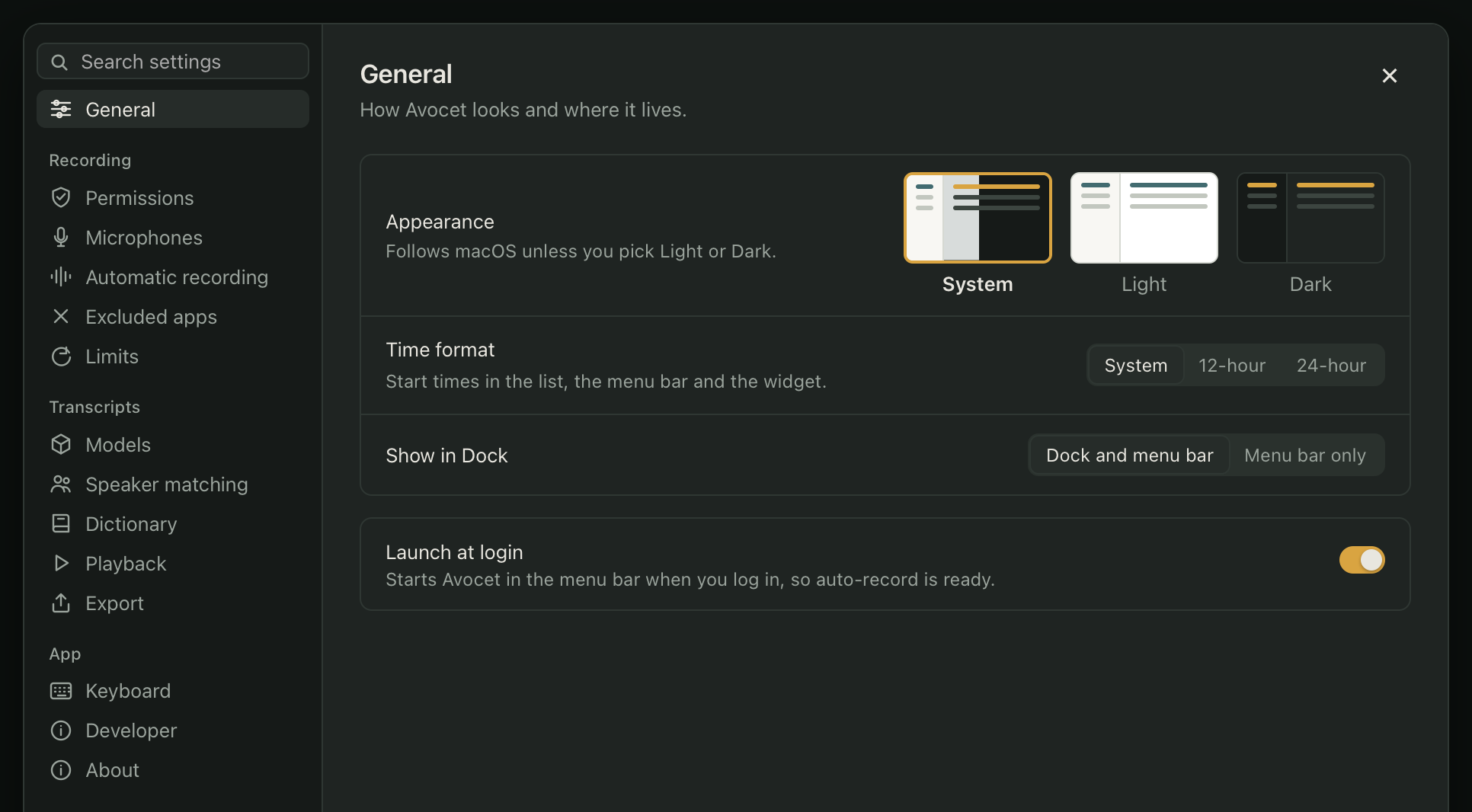
Settings has four sections in the sidebar, and the search box at the top filters them by name.
General
Appearance (light, dark, or match your system), 12 or 24-hour clocks, whether Avocet shows in the Dock or stays menu-bar only, and Launch at login.
Recording
- Permissions: live status for Microphone and System audio, with a button to grant or fix each one.
- Microphones: the order Avocet tries your connected microphones in, and whether it switches to a better one automatically when it connects.
- Automatic recording: turn auto-start on or off, and reset the headphones-or-speakers answers Avocet has remembered.
- Excluded apps: the apps that never trigger a recording, with a checklist to add or remove any app that has recently used your microphone.
- Limits: the minimum recording length before Avocet keeps it, and how long Avocet waits after the triggering app releases the microphone before stopping automatically.
Transcripts
- Models: download status for the transcription and speaker models, with options to verify or re-download either one.
- Speaker matching: the confidence thresholds for suggesting and automatically assigning a known speaker, and how much evidence Avocet requires first. See Correcting speakers.
- Dictionary: your saved find-and-replace rules. See Transcript dictionary.
- Playback: how far the back and forward keyboard shortcuts skip during playback.
- Export: where your meeting notes and audio are saved on disk.
App
- Keyboard: every shortcut in Avocet, with its current binding and a control to change it. See Keyboard shortcuts.
- Developer: reopen the first-launch setup at any time without losing your progress, and generate a local speaker-matching report for tuning the thresholds above.
- About: your installed app and sidecar versions, for support and bug reports.
- Automatically check for updates: on by default. Turn it off if you do not want Avocet to check for a newer version when the main window starts.
- Check now: request an update check even when automatic checks are off. If an update is available, About shows its release notes and an action to install and restart. If a check fails, About shows the reason under the message. Install and restart waits until no meeting is recording, paused or processing.
Update checks contact updates.avocet.dev and reveal your IP address. Your current version and architecture are used on this Mac to choose an update. Meeting audio and transcripts are not sent.