Recording
How automatic and manual recording work, the floating widget, and the apps Avocet never records.
Avocet records your microphone and the other side of the call as two separate tracks and keeps them on your Mac.
Starting a meeting
Automatic recording is on by default. When an eligible app opens your microphone, Avocet starts a meeting without a click. It allows one automatic start per app per minute, so a quick mic check does not spawn a second recording.
You can also start a meeting yourself from the menu bar popover. Click Start recording.
Either way, a small title capsule appears with an editable name like "Zoom 1430" or "Meeting 1430". Edit it and press Return, or leave it and it saves the suggested title after a short countdown.
Pause, resume, and stop
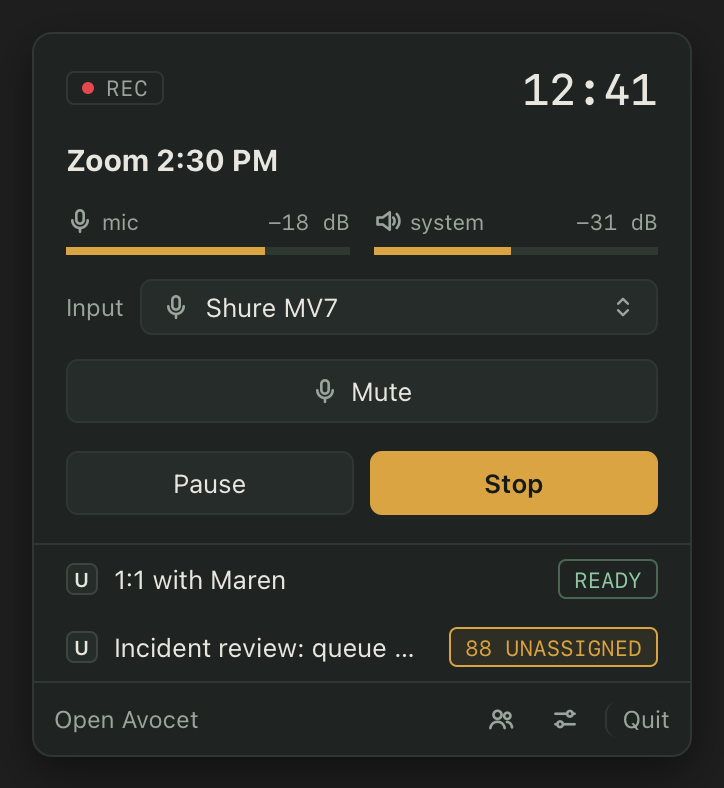
Use Pause, Resume, or Stop from the popover or the floating recording widget. Paused time does not count toward the recording's duration.
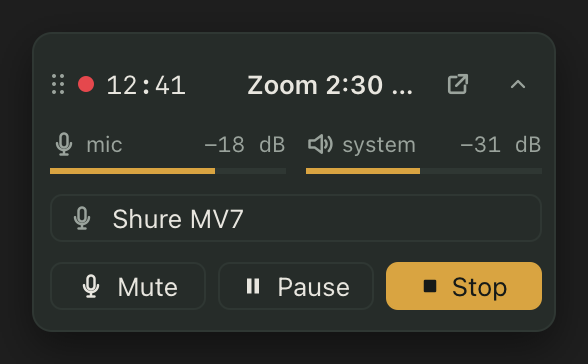
The widget appears once recording starts and stays visible while paused or stopping. It shows your current input without a selector, and you can collapse it to a compact bar that stays out of the way.
For an automatic recording, you can also just let the triggering app release the microphone. Avocet waits 15 seconds by default, then stops on its own. If the app comes back during that window, Avocet keeps recording.
A recording shorter than 120 seconds by default is discarded rather than saved. Both of these limits are adjustable in Settings > Recording > Limits.
Silent-track warnings
Avocet shows a warning in the widget and tray for whichever track stops producing audio. Mic silence and missing buffers warn after 10 seconds. System missing buffers also warn after 10 seconds, but system silence only warns after 60 seconds, and only if no nonzero system sample has arrived since the recording started or resumed. Once system audio produces a nonzero sample, later quiet stretches do not trigger a new warning until the next start or resume.
The four warnings:
- Microphone audio is silent. Check your input.
- No system audio yet. If call audio is playing, check capture access.
- No microphone audio buffers are arriving. Check your input.
- No system audio buffers are arriving. Check capture access.
A quiet but nonzero signal does not trigger a warning. While the microphone is known hardware-muted, Avocet hides only the mic silence warning; a mic no-buffers warning still appears. Nonzero audio clears a warning, and pause, resume, stop, a new recording, or a microphone change starts a fresh detection segment.
Apps Avocet never records
A starting list of apps never trigger a recording, and their audio is left out of the system track if you happen to be recording something else while they run. This covers dictation and voice tools like Siri, Krisp, Wispr Flow, Superwhisper, Willow, VoiceInk, Aqua Voice, and Voice Memos, plus System Settings itself. Review or edit the list in Settings > Recording > Excluded apps.
Headphones or speakers
If your Mac's speakers are playing the call out loud, they can bleed into your microphone and muddy the transcript. Avocet warns you when it detects an open-air output like the built-in speakers, and asks once whether you are on headphones or speakers so it only warns when it needs to. A Bluetooth headset is also flagged, since Bluetooth microphones are limited to call quality and a wired or USB microphone will transcribe better.
Choosing a microphone
The popover lists every connected microphone and lets you switch between them mid-recording. Avocet tries your preferred microphones in order and falls back to your Mac's default input. Manage that order, and whether Avocet automatically switches to a better microphone when it connects, in Settings > Recording > Microphones.